Affiliate disclosure: PicksLab earns commissions on qualifying Amazon purchases, at no extra cost to you.
A home server gives your household a computer that stays available when everyone’s laptop is closed. It can collect backups, put your movie library on the living-room TV, run home automation, or keep a game world online for friends. You don’t need all of those things. You need a machine that does the jobs you actually want.
For a first server that shares files, runs Jellyfin and hosts a few small services, we’d start with a modest Intel desktop with integrated graphics, an SSD for the operating system and separate storage for your files. Virtual machines need more memory. Large media libraries need more drive bays. Local AI models may need a GPU that costs more than the rest of that server. Those are different builds, not reasons to buy the biggest CPU by default.
Already know that’s what you want? Here are the parts, with direct purchase links. The prices include the second hard drive and a separate CPU cooler, two easy things to miss when comparing build totals. The compatibility notes explain the less obvious choices; the setup steps take you from a box of parts to useful services.
Buy the Parts: Files, Media and Small Services
This example targets an Ubuntu-based household file and Jellyfin server with room for modest experiments. It is not a many-user transcode benchmark, a large VM host or a local-AI workstation.
Price checked: October 14, 2026. These were ordinary new-item US Amazon offers with active Add to Cart and Buy Now controls, not used prices or Prime-only discounts. Each product name opens that exact listing. Set the hard-drive quantity to two; the memory quantity stays one kit.
| Product | Buy quantity | Price checked, each | Line cost | Job in this build |
|---|---|---|---|---|
| Intel Core i3-12100, OEM tray | 1 CPU | $179.99 | $179.99 | Processor with integrated graphics; no cooler in this offer |
| MSI PRO B760M-P DDR4 | 1 board | $104.00 | $104.00 | Micro-ATX board with wired Gigabit Ethernet |
| Crucial Pro CP2K16G4DFRA32A, 32GB | 1 kit of 2 x 16GB | $229.99 | $229.99 | Memory for the host and a few small services |
| Thermalright Assassin X 120 Refined SE | 1 cooler | $17.90 | $17.90 | Required cooling for this tray CPU |
| WD_BLACK SN7100 1TB, WDS100T4X0E | 1 SSD | $199.00 | $199.00 | Operating system, applications and their databases |
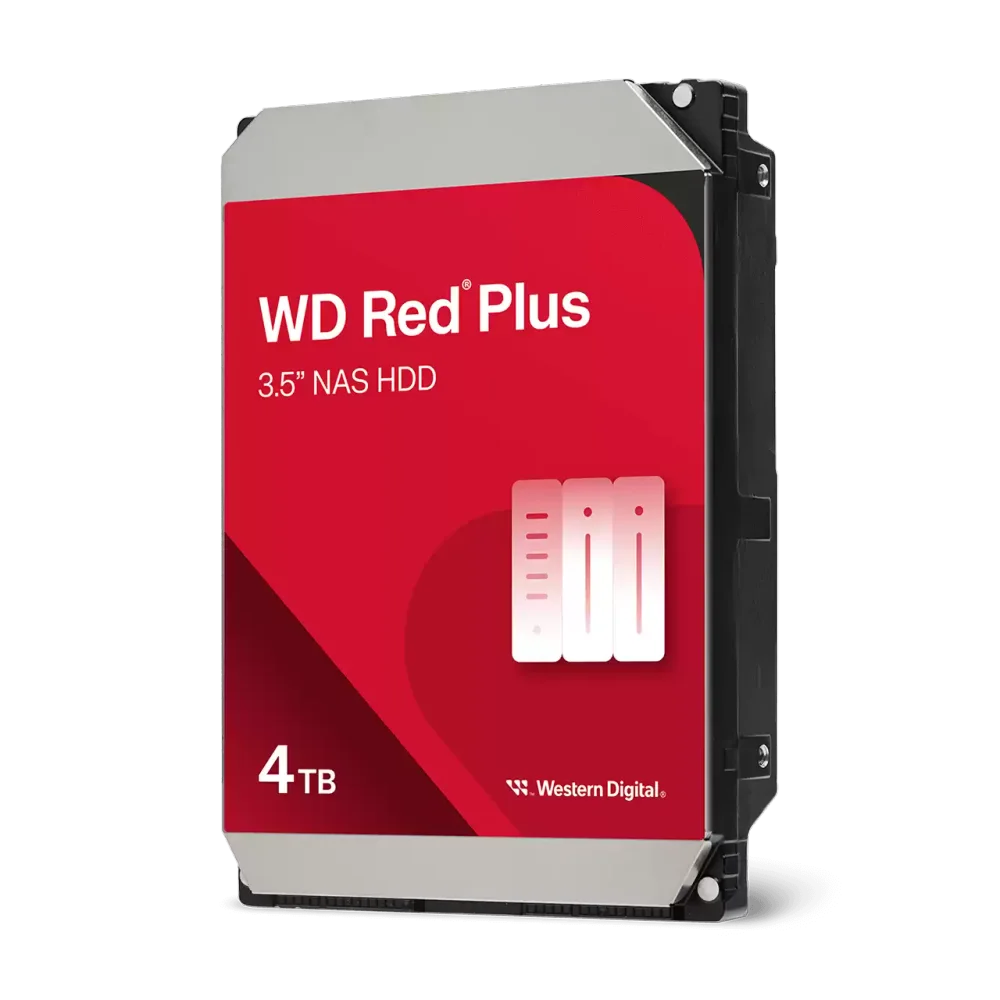
| WD Red Plus 4TB, WD40EFZZ | 2 drives | $194.99 | $389.98 | Two data disks for a 4TB nominal mirror |
| Fractal Design Pop Mini Silent Black Solid | 1 case | $84.99 | $84.99 | Holds the board and both hard drives; includes three case fans |
| Corsair CX550, CP-9020277-NA | 1 PSU | $89.99 | $89.99 | Power supply and AC power cord |
Computer-parts subtotal: $1,295.84. This includes both hard drives. The price is before tax and shipping and excludes independent backup storage, Ethernet cable, installation USB, temporary keyboard/display and any missing assembly supplies. Ubuntu Server, Samba and Jellyfin don’t require buying a Windows license.
At these prices, we wouldn’t buy all of it just to experiment with a home server. The RAM and SSD alone account for $428.99. Reusing a compatible 32GB DDR4 kit and a healthy, adequately sized SSD would bring this same parts subtotal to $866.85. That is a conditional reuse example, not a second all-new build price. Start with a spare desktop if you have one; use the list to buy the pieces you actually need.
The checked sellers were ProTech PC for the tray CPU, Simplin for the motherboard, Newegg Business for the RAM, Thermalright Direct for the cooler, electrolert for the SSD, and Amazon.com for the disks, case and PSU. The cooler’s free non-Prime shipping depended on an eligible order of at least $35; other checked offers displayed free US delivery. Delivery dates, sellers and prices can change independently. Check the seller and exact model again before paying, particularly the tray CPU’s seller-provided warranty terms.
What Else Goes in the Shopping Basket?
- Two SATA data cables connect the hard drives to the motherboard. Check the actual motherboard bundle before ordering extras; SATA power cables come from the PSU and are a different thing.
- An Ethernet cable, USB installer, screwdriver, and temporary keyboard/display are assumed to be things you already have. This motherboard doesn’t include Wi-Fi. Choose Ethernet cable length for where the server will actually sit.
- The LGA1700 mounting hardware and thermal compound must be present with the cooler. Check the package before assembly; don’t run the tray CPU without a mounted heatsink and fan.
- A separate backup destination is still required. Reuse an adequately sized backup device or budget for one separately, including room for retained versions. The two internal drives below are a mirror, not that backup.
If you’re buying everything from scratch and don’t have those items, $1,295.84 is not your complete setup cost. Price the missing items before checking out. You do not need a separate graphics card, network card or extra case fans for the configuration described here.
What Would You Actually Use a Home Server For?
The most immediately useful job is often boring: keeping another copy of the files you’d hate to lose. Your laptop can back up to the server while you’re home. Other computers can share a household folder without one person’s desktop needing to stay logged in. That is convenient, but the server itself also needs a backup. Moving your only copy of family photos onto it isn’t protection.
A media server solves a different problem. Jellyfin organizes media you already have and delivers it to compatible clients. If the TV can play a file as it is, the server’s job is relatively light. If it must convert video into another format, the graphics hardware, codec and software configuration start to matter. It doesn’t supply a licensed movie catalog or replace every streaming subscription.
For home automation, Home Assistant gives you a place to manage supported devices and automations. For a home lab, virtual machines let you experiment with Linux, development services and network setups without repeatedly rebuilding your main PC. These are good reasons to own a server if you enjoy the administration. They’re less compelling if you only want an appliance that never asks for attention.
| Your main job | Sensible starting allocation, not a performance guarantee | What actually drives the hardware choice |
|---|---|---|
| Home automation and a few lightweight services | 4-8GB RAM, SSD, wired network | Software support, reliability and backups of configuration; not a dedicated GPU |
| Computer backups and shared files | 8-16GB RAM; data capacity based on what you store | Drive bays, storage layout, network speed and an independent backup destination |
| Jellyfin plus file sharing | 8-16GB RAM, SSD and supported integrated graphics | Direct play versus transcoding; the exact codecs and clients you use |
| Several virtual machines or a development lab | 32GB RAM as a planning starting point | Sum the guests’ memory and leave capacity for the host; SSD capacity grows with VM disks |
| A dedicated game server | The game’s documented requirements first | Player count, mods, CPU performance, upload connection and whether it runs alongside other services |
| Home AI agents | Small services may fit an ordinary desktop; local models need a separate sizing exercise | Calling an online model is not the same workload as loading a model into local GPU memory |
Those memory figures are editorial starting points, not minimum requirements for every application. For example, Proxmox’s requirements distinguish memory for the host from memory allocated to guests. A 32GB box with two 8GB guests and one 4GB guest has used 20GB before host overhead and other services. Giving every guest more virtual CPUs doesn’t create more physical processing capacity.
Our game-server build guide covers that separate workload. For local inference, the prebuilt PC comparison for local AI explains why GPU memory changes the buying decision.
Reuse a PC, Buy a NAS, or Build?
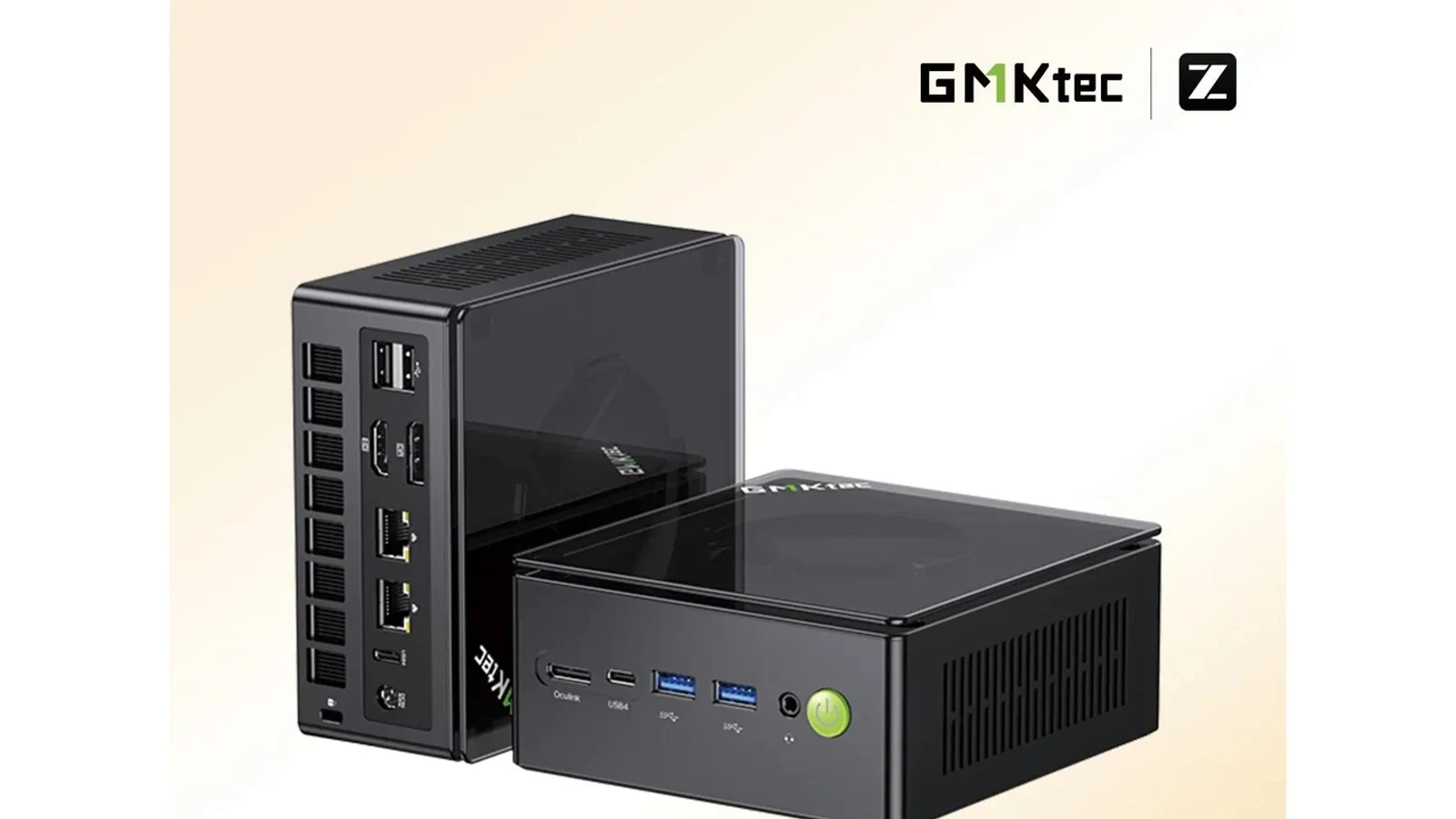
An unused desktop is worth trying first. Check that it can run a supported operating system, has enough RAM for the intended services, and has healthy storage. Use it to learn whether you actually want to administer a server before buying a case full of disks. Small office desktops can be useful, but proprietary power supplies, limited drive bays and laptop-style memory can make upgrades awkward.
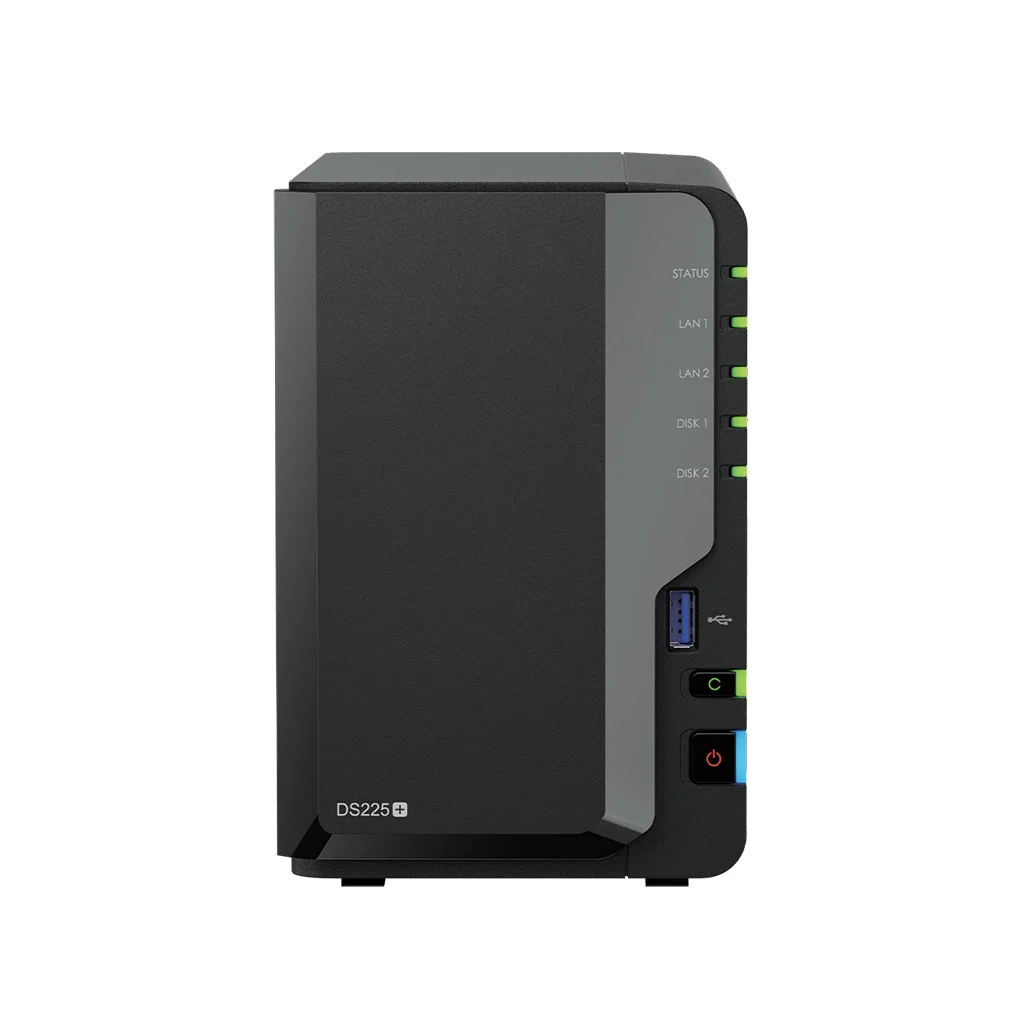
A NAS is the simpler route when storage is the job. Our two-bay NAS comparison is the more relevant starting point if you mainly want shared folders and scheduled backups in a supported appliance. Building your own gives you more choice over the operating system and expansion; it also makes you responsible for integrating and maintaining those choices.
Build when the requirements justify it. Multiple internal disks, a particular media engine, expansion cards or several VMs are concrete reasons. A rackmount chassis isn’t automatically better for a first home server. Consider where the machine will live, how much fan and disk noise you can tolerate, and whether you have space to service it.
Why These Parts Fit Together
The original ASRock motherboard and Node 804 case no longer had new-stock purchase paths when we checked, so the shopping list uses MSI’s DDR4 board and the smaller Pop Mini Silent instead. That changes two important things: wired networking is 1GbE, not 2.5GbE, and the case has two included hard-drive trays, not eight bays. Don’t buy it expecting the old expansion plan.
| Product | Model-specific facts | Why it matters; official source |
|---|---|---|
| Intel Core i3-12100 | CPU: 4 cores/8 threads; Socket: LGA1700; Graphics: UHD 730 with Quick Sync | Keeps integrated graphics for setup and supported transcoding. Do not substitute the 12100F. Intel specifications. |
| MSI PRO B760M-P DDR4 | Format: micro-ATX; Memory: four DDR4 slots; Storage: four SATA ports and two M.2 slots; Network: Gigabit Ethernet | Supports 12th-generation LGA1700 processors without relying on a later-generation CPU BIOS update. Use the DDR4 model, not a similarly named DDR5 board. MSI specifications. |
| Crucial Pro 32GB kit | Kit: 2 x 16GB; Type: 288-pin DDR4 UDIMM; Rated speed: 3200MT/s; Voltage: 1.2V | Buy one kit, not two. Desktop UDIMMs aren’t laptop SO-DIMMs. Crucial’s DDR4 Pro product flyer documents the specification; exact kit is CP2K16G4DFRA32A. |
| Thermalright Assassin X 120 Refined SE | Mount: LGA1700 supported; Heatsink height: 148mm; Fan: 120mm, 4-pin PWM | Fits below the case’s 170mm cooler limit. The tray CPU above doesn’t include a cooler. Thermalright specifications. |
| WD_BLACK SN7100 1TB | Capacity: 1TB; Format: M.2 2280; Interface: PCIe 4.0 NVMe | Put Ubuntu and applications here, leaving the SATA disks for household data. This is not a second data mirror. Sandisk’s 1TB specifications. |
| WD Red Plus WD40EFZZ | Capacity: 4TB each; Format: 3.5-inch; Interface: SATA 6Gb/s; Recording: CMR | Two equal drives in a mirror provide about 4TB nominal data capacity, not 8TB, before filesystem overhead. WD data sheet, WD40EFZZ column. |
| Fractal Pop Mini Silent Black Solid | Board support: micro-ATX; Included HDD trays: two; Fans: three 120mm; PSU limit: 150mm | The two-disk plan fills its included HDD positions. Pick a larger chassis before buying if you already expect more disks. Fractal product sheet, pages 4-6. |
| Corsair CX550 | Format: ATX; Length: 125mm; Capacity: 550W; SATA power: three connectors | Fits the case’s 150mm PSU limit and powers both hard drives. The 550W label isn’t the server’s expected electricity use. Corsair connector table. |
Three checks prevent expensive substitutions. Keep the CPU’s integrated graphics, keep the board and RAM on DDR4, and keep the cooling and PSU inside the case’s clearance limits. The specified 148mm heatsink is below the 170mm case limit; the 125mm PSU is below the 150mm limit. Neither figure establishes clearance for every replacement cooler or cable layout.
Use the board’s CPU-connected M.2 slot, M2_1, for the NVMe SSD. MSI documents SATA-port sharing when a SATA M.2 drive is installed in M2_2; that is not the PCIe NVMe arrangement here. Four motherboard SATA ports and three PSU SATA power connectors don’t make this a four-drive enclosure: the case’s two included HDD trays are the initial storage limit.
For assembly, use MSI’s board manual and official support page. Populate the recommended two-module memory slots and connect CPU/EPS power as well as the 24-pin motherboard lead. Check the current memory compatibility list and run a memory test before adding valuable data; an exact-kit QVL match has not been established here. BIOS updates use MSI’s instructions and the exact DDR4 model’s download, not third-party driver utilities.
This is a specification-matched build, not a measured stream-count or power-use guarantee. Keep default memory settings for the first boot and stability check; investigate problems before enabling performance profiles. The CPU is an OEM/tray offer, so don’t assume a retail box, bundled Intel cooler or boxed-processor warranty.
The CPU choice is about keeping a useful media engine, not promising a number of 4K streams. Jellyfin’s Intel acceleration documentation explains the required configuration. Your source codec, subtitles, HDR processing and playback device can change the result. Verify your own troublesome files before spending more on a processor or graphics card.
What Changes for a Different Purpose?
For backups without much media work, spend on storage and recovery first. A faster CPU won’t rescue the only copy of a deleted folder. Size the data drives for your actual collection and growth, then budget for a separate backup. If one disk is enough initially, understand that losing it means restoring service from backup rather than continuing on a mirror.
For a VM lab, memory and SSD capacity become the first questions. Write down the guests you intend to run simultaneously and their allocations. A bigger CPU can help with sustained concurrent work, but it doesn’t compensate for memory exhaustion. Keep a copy of the host configuration and useful guest data elsewhere.
For a media server, test direct play before blaming the server. A compatible player may avoid a transcode entirely. For multiple demanding conversions, use the current Jellyfin hardware guidance and your specific media rather than assuming every integrated GPU is equivalent.
For Home Assistant alone, this build is more machine than you need. The official generic x86-64 installation route supports a dedicated machine. You can also design a VM setup, but a host reboot then affects your home automation too. Separating a household-critical service from an experimental lab can be worth the extra small device.
From Parts to a Working Server
Hardware is only half the job. For this build, we’d start with a supported Ubuntu Server LTS release, Samba for household file shares and Jellyfin for media. That’s one coherent software route; you don’t need to install a hypervisor just because the computer is called a server.
- Assemble and check the hardware before adding valuable data. Follow the motherboard and cooler manuals, confirm fans run, check that the BIOS recognizes the expected memory and drives, and run memory and drive diagnostics. Investigate errors before treating the system as reliable.
- Install the operating system on the SSD. Use the Ubuntu Server installation guide. Disconnect data disks during installation if that helps prevent selecting the wrong target. Installation and pool-creation tools can erase disks; don’t experiment on the only copy of anything.
- Give the server a predictable address. Connect Ethernet and use a DHCP reservation on your router. Keep administration local initially. Don’t expose SMB file sharing or an admin interface to the internet to make remote access convenient.
- Create the intended storage layout and named-user shares. A mirror belongs on the two data drives; the OS/app SSD remains separate and needs its own backup plan. Follow the documentation for your chosen storage manager before formatting. Configure Samba file serving with user and group access controls, not an unrestricted household-wide writable share by accident.
- Add one service at a time. Get file sharing working from a second computer, then add Jellyfin. Give a media service only the access it needs; a read-only library is useful when it doesn’t need to alter the original files. Confirm ordinary playback before enabling and troubleshooting hardware transcoding.
- Prove you can recover. Schedule backups to the separate destination and restore a sample file into a new folder. Open it and check its contents. Back up application settings and databases as well as media; follow each application’s instructions for a consistent database backup.
- Test a restart and establish maintenance. Check that storage mounts, shares and services return after a normal reboot. Set an update schedule and a way to notice failed backups or disks. A UPS sized for the server’s actual load can provide time for a graceful shutdown, but it also needs a working data connection and shutdown policy, and it doesn’t replace backups.
That sequence gives you useful checkpoints. “It boots” and “I can recover my files” are very different milestones.
What Does It Cost to Keep Running?
The shopping table totals the computer parts at $1,295.84 on October 14. Add your missing equipment and independent backup storage before deciding whether building makes sense. You can reuse suitable parts without buying the whole list, but check dimensions, connectors and storage health first. Don’t save money by making the server the only copy of your files.
Power is another reason to match the machine to the job. As an illustration, not a measurement of this build:
| Assumed average wall draw | Annual energy at 24 hours/day | Annual electricity at $0.15/kWh |
|---|---|---|
| 35W | 306.6kWh | $45.99 |
| 70W | 613.2kWh | $91.98 |
The calculation is watts / 1,000 x 24 x 365, multiplied by your electricity rate. Measure the actual server at the wall once it is running; CPU thermal ratings and the PSU’s label are not measurements of idle consumption. Drives, services and power settings affect the average.
A home server can be worthwhile for control, learning and local access even when it doesn’t save money. It isn’t automatically cheaper than an existing cloud plan, particularly once backup storage and your time are included.
FAQ
What is the point of a home server if I already have a desktop?
Availability and separation. The server can receive backups, share files and run services while your desktop is off or being restarted. You can try those jobs on an existing computer first; a separate box becomes useful when other people or devices depend on them being available.
How much RAM does a home server need?
It depends on the software and what runs at the same time. Our starting allocations above are planning suggestions, not universal requirements. Basic sharing and a few small services don’t inherently need 32GB. Virtual machines, large applications and storage software with higher requirements can change that quickly.
Does a home server need a graphics card?
Not for ordinary file sharing. Integrated graphics can be useful for media transcoding and local troubleshooting, which is why the example uses a non-F Intel CPU. GPU-based local AI or other accelerated workloads require a separate decision about memory, power, cooling and software support.
Is a two-drive mirror a backup?
No. A mirror can keep data available after one drive fails, but deletion, ransomware, theft or another shared failure can still affect your files. Keep independent recoverable copies and test a restore. The SSD’s applications and settings also need protection even when the data disks are mirrored.
Digital backups do not protect original passports, signed papers or certificates. Our HD4100 document-safe review addresses that separate paper-storage job, including the limits of its fire and water ratings.
Should I leave it on all the time?
Only if the services need it. Household automation, scheduled backups and a game server for friends may depend on continuous availability. An occasional archive or experimental lab may not. Weigh those requirements against measured power use, and schedule maintenance so other users know when it will be unavailable.
Bottom Line
Build around a job you want done. For a first combined file and media server, the parts list above gives you the exact components, purchase quantities and current price snapshot. For backups alone, a reused desktop or NAS may be simpler. For VMs, games or local AI, change the parts because the workload requires it, not because a generic server shopping list says you should.
The useful result isn’t owning server hardware. It’s having your backups run, your media play and your services recover after a restart, with another copy of the data when something goes wrong.
Disclosure: As an Amazon Associate, PicksLab earns from qualifying purchases. Prices and availability can change; confirm the current price, seller and exact variant before purchase.