Affiliate disclosure: PicksLab earns commissions on qualifying Amazon purchases via the pickslab-20 tag, at no extra cost to you.
TL;DR - Our top pick: ATEN CS1822 is our feature-led pick for one HDMI monitor: it combines 4K60 video, keyboard hotkeys, and documented EDID handling. It cannot switch two monitors. For a simpler single-screen desk, start with the ATEN CS22H; for two DisplayPort monitors, consider the IOGEAR GCS1942NC.
A KVM lets your work computer and personal PC use the same screen, keyboard, and mouse. The catch is the wiring: a dual-monitor KVM normally needs two independent video outputs from each computer, not one HDMI cable that it magically splits into two desktops. Buying the right port layout matters more than buying the largest resolution number.
This comparison covers traditional HDMI and DisplayPort KVMs with separate USB data connections. If you only want to share peripherals and can change the monitor input yourself, a USB switch for two computers is a simpler alternative. None of the five picks below is a one-cable laptop-charging dock.
Compare the Five KVMs
These are visible US Amazon offer prices checked September 30, 2026, not guaranteed checkout prices. The UGREEN 55455’s lower price is Prime-only; the regular offer was $79.99. Check the seller, condition, and current total before ordering.
| Product | Price (Sep 30) | Monitor Path | Best For |
|---|---|---|---|
| ATEN CS1822 | $292.96 | 1 HDMI | One screen with hotkeys and display handling |
| ATEN CS22H | $82.00 | 1 HDMI | Simple one-screen setup with built-in PC cables |
| IOGEAR GCS1942NC | $59.99 | 2 DisplayPort | Two native DisplayPort monitors; cables extra |
| UGREEN 55455 | $79.99 regular; $69.99 Prime | 2 HDMI | Two HDMI monitors switched together |
| TESmart HKS202-E23 / HKS0402A1U | $199.99 | 2 HDMI | Seeing both PCs on separate screens |
Which Switch Do You Actually Need?
Marketplace listings sometimes call a USB-only sharing box a “KVM” even though it has no video path. Trace the cables you need before comparing product names:
| What must move between computers? | Cable path to verify | Start here |
|---|---|---|
| Keyboard, mouse, printer, or webcam only | Each computer connects to the USB switch; displays stay connected separately | USB peripheral switches |
| One HDMI or two HDMI/DisplayPort monitors and USB peripherals | Each computer supplies its own video output(s) plus a USB host cable to the KVM | Traditional display KVMs on this page |
| Laptop video and USB over a USB-C host cable | Confirm video mode, laptop display limit, power delivery, and any dock or DisplayLink requirement | Native USB-C KVMs for Mac and Windows |
A quick rejection test: if the product has no video input and output, it cannot switch your monitor. If it has HDMI or DisplayPort ports but no USB host connection for each computer, it cannot move a USB keyboard between them. A USB-C socket alone proves neither video support nor laptop charging; check the exact host-port specification. This distinction is why the three linked guides retain separate buyer intents, rather than competing as interchangeable “two-computer switches.”
We checked manufacturer specifications, manuals, and exact variants on September 9, 2026, and rechecked all five Amazon purchase paths and displayed prices on September 30. The ATEN CS22H manufacturer specifications were also checked September 30. This is researched buying guidance, not a hands-on compatibility test. We do not promise that every keyboard, dock, graphics card, or sleep/wake combination will work.
Feature Comparison
Video limits below assume the computer, cables, adapters, and monitors support the selected mode. USB bandwidth is shared, not a guaranteed transfer rate for each attached device.
| Model | Monitor Outputs | Connections From Each PC | Shared USB Hub | Switching and Display Caveat |
|---|---|---|---|---|
| ATEN CS1822 | 1 HDMI, up to 4096 x 2160 at 60Hz | 1 HDMI + 1 USB | 2 USB-A, 5Gbps, plus dedicated keyboard/mouse | Buttons/hotkeys; Video DynaSync and default EDID mode |
| ATEN CS22H | 1 HDMI, up to 4096 x 2160 at 60Hz | Built-in HDMI + USB-A leads | 2 USB-A console ports, USB 2.0 | Wired remote button; no hotkeys or fast accessory hub |
| IOGEAR GCS1942NC | 2 DisplayPort, up to 4096 x 2160 at 60Hz | 2 DisplayPort + 1 USB | 2 USB-A, 5Gbps, plus dedicated keyboard/mouse | Buttons/hotkeys; retained-window behavior not established here |
| UGREEN 55455 | 2 HDMI, up to 4K60 | 2 HDMI + 1 USB | 3 USB-A + 1 USB-C, 5Gbps | Button/wired controller; both monitors follow one PC |
| TESmart HKS202-E23 | 2 HDMI, up to 3840 x 2160 at 60Hz | 2 HDMI + 1 USB | 1 USB 2.0 accessory port, plus keyboard/mouse | Buttons/IR/hotkeys; EDID emulation only in same-PC display mode |
Check Your Connections Before Ordering
For two laptops with video-capable USB-C ports, our USB-C KVM comparison for Mac and Windows separates native video from DisplayLink software and shows which models require extra laptop chargers. That is a different connection plan from the separate video and USB cables compared here.
- Test both monitors directly from each computer. Use the resolution and extended-desktop arrangement you actually want. A KVM does not add graphics capability. A USB-C-to-HDMI adapter is useful only if that port and computer already support the required video output.
- Count the whole cable path. One-monitor setups need three video cable runs total: one from each PC and one to the monitor. The CS22H has its two PC-side leads built in; the other one-screen pick needs separate host cables. Two-monitor setups need six video runs: four from the PCs and two to the monitors. Add USB host connections, peripheral cables, and the specified power supply where needed.
- Check the laptop’s exact display limit. Mac support varies by chip, model, operating system, and sometimes whether the lid is closed. Apple’s external-display guidance is the starting point. Neither an ordinary adapter nor a KVM overrides those limits. Windows laptops also have GPU and dock bandwidth limits.
- Choose how you want to switch. A wired button can be convenient under a desk; hotkeys require a supported keyboard connection. Bluetooth paired directly to a computer does not move with the KVM. A USB wireless receiver is a different setup and still needs compatibility checking.
Label the two computers’ cables before routing them. Our desk cable-management guide covers keeping the resulting bundle accessible rather than burying a connector you will need to troubleshoot.
1. ATEN CS1822
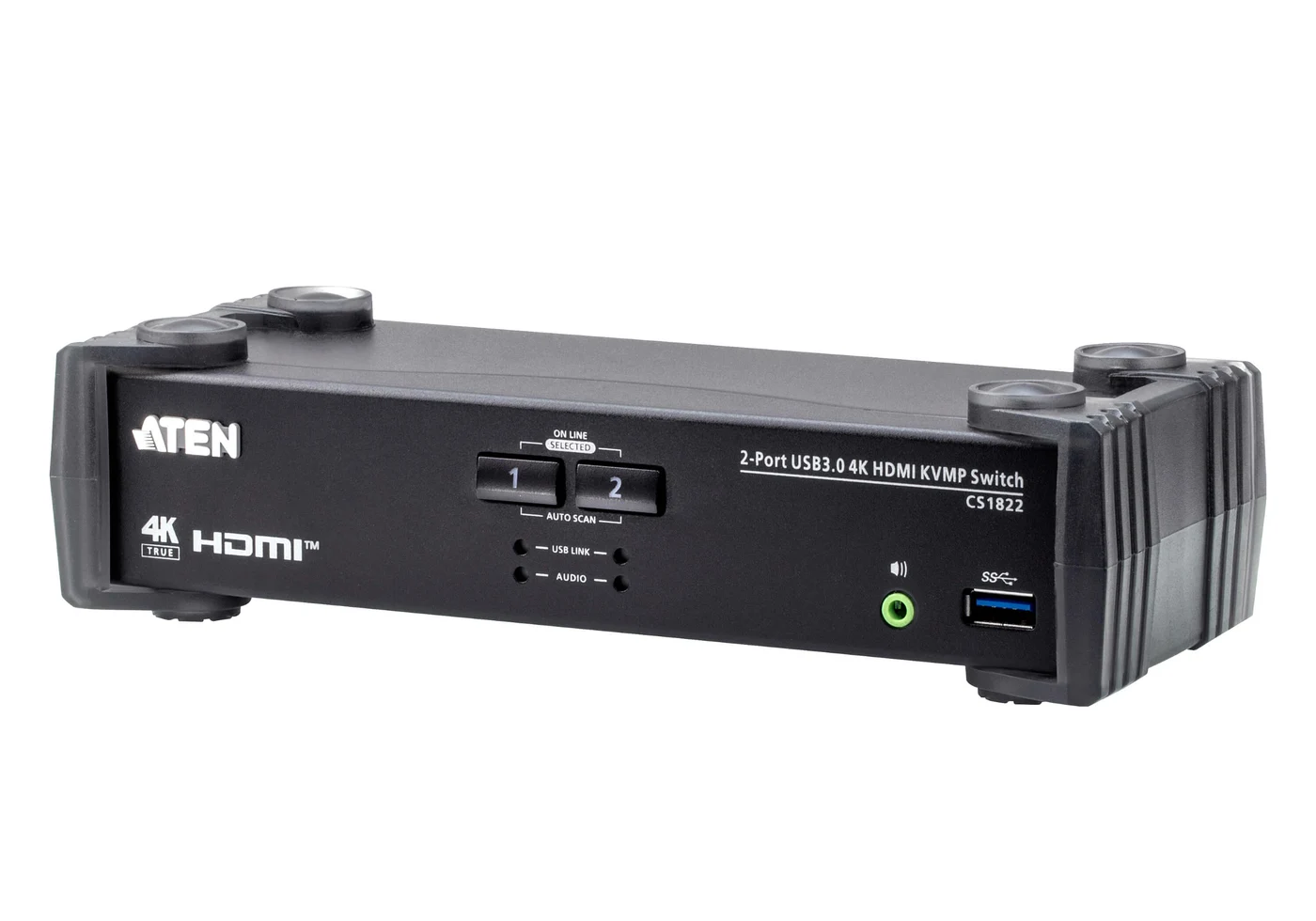
Image and specifications: ATEN CS1822.
Key specs: Video: one HDMI output, up to 4096 x 2160 at 60Hz; Hub: two USB-A ports at up to 5Gbps; Controls: pushbuttons, hotkeys, mouse switching, and RS-232; Display handling: Video DynaSync and default EDID mode.
Choose the CS1822 when a single-monitor setup needs keyboard switching and documented display handling rather than just a button. ATEN also lets USB peripherals and analog stereo audio follow a different computer from the video. HDMI-carried audio cannot be switched independently.
The official user manual explains hotkey settings and emulation. Mouse switching requires a three-key wheel mouse in emulation mode. Normal switching uses hardware controls, not a required desktop app. Optional firmware downloads are on the product’s Support and Downloads tab; follow the matching manual before updating.
ATEN lists two HDMI and two USB host cables in the package, so you still need the monitor-side HDMI cable. Skip it if you need two monitors or simply want the least complicated button-operated setup.
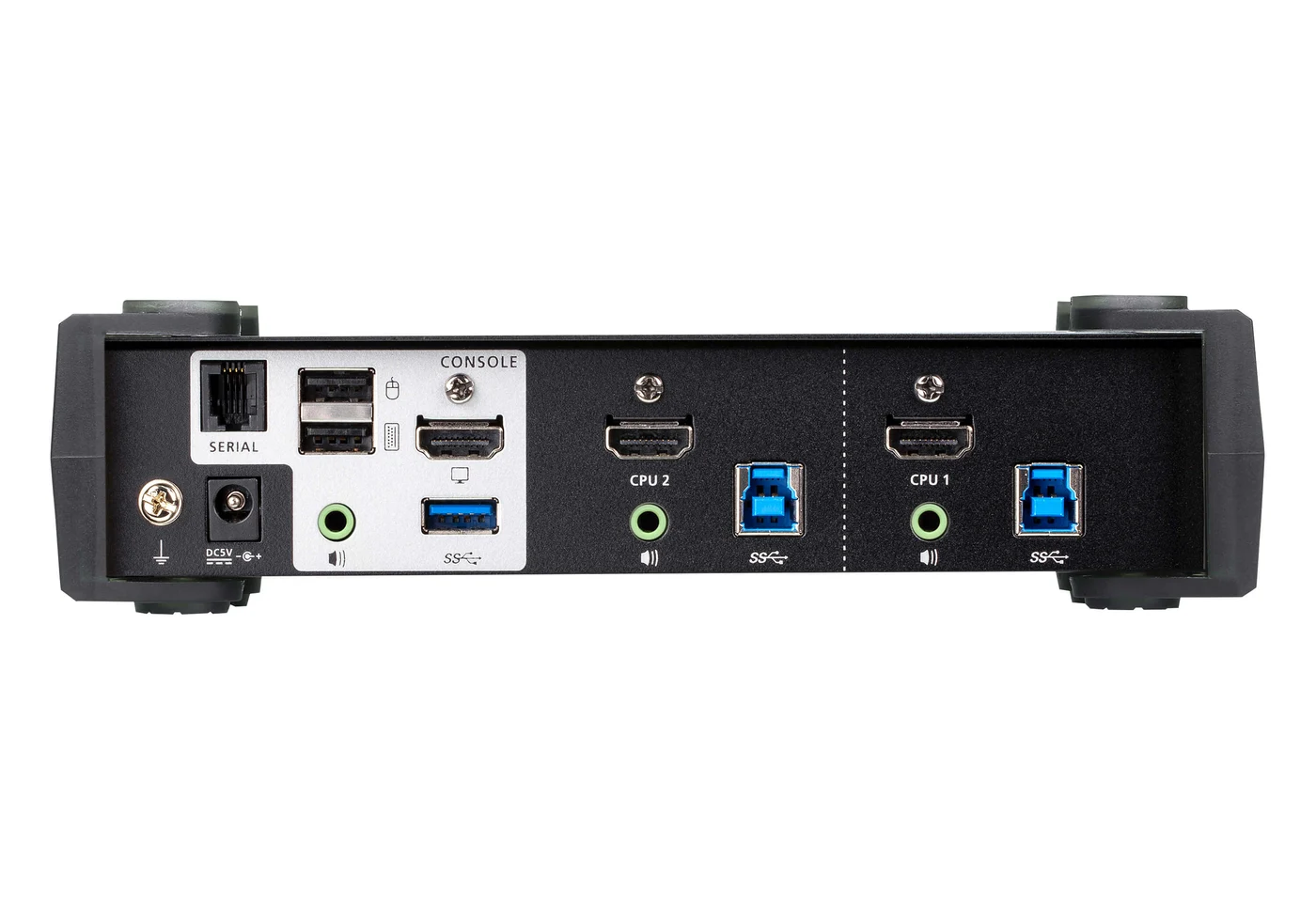
Rear-port image: ATEN. The CPU groups each need video and USB; the console HDMI goes to the monitor.
2. ATEN CS22H
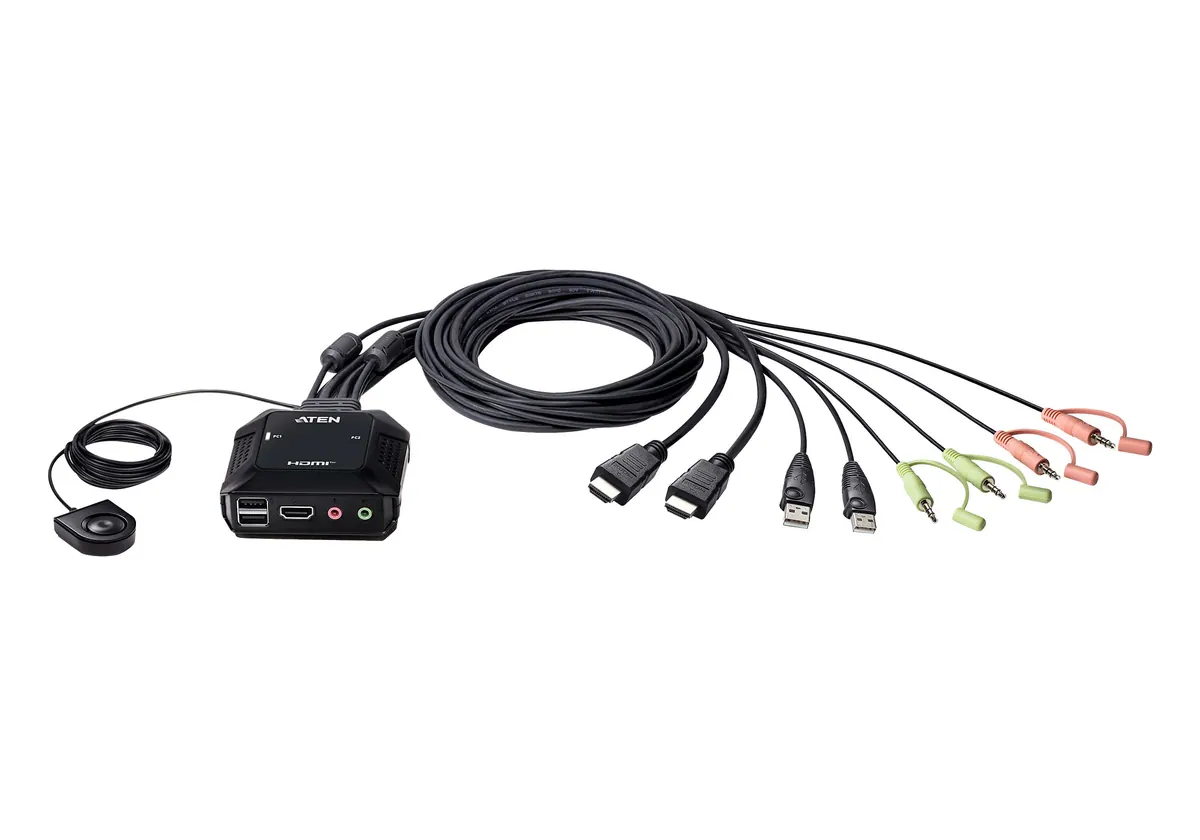
Image and specifications: ATEN CS22H.
Key specs: Video: one HDMI output, up to 4096 x 2160 at 60Hz; Host leads: two integrated 1.2 m HDMI/USB-A cable sets; Console: two USB-A ports with USB 2.0 peripheral sharing; Control: 1.8 m wired remote selector.
Choose the CS22H for one HDMI screen when an under-desk wired button is enough and you want the PC-side leads already attached. The ATEN datasheet documents the cable lengths, video ceiling, and USB ports. You still need a monitor-side HDMI cable.
Its console USB ports can share peripherals, but this is not a 5Gbps accessory hub for external drives. ATEN describes the switch as bus-powered while noting that some setups may need a separately purchased USB Micro-B power cable and supply. Check that possibility if a connected peripheral draws more power than the host ports provide.
Skip it if keyboard hotkeys, a second monitor, or a fast shared USB hub are essential. The CS1822 adds hotkeys and USB 5Gbps hub ports; the dual-monitor picks serve a different cable layout. This CS22H is a cabled switch, not the similarly named USB-C dock or a laptop charger.
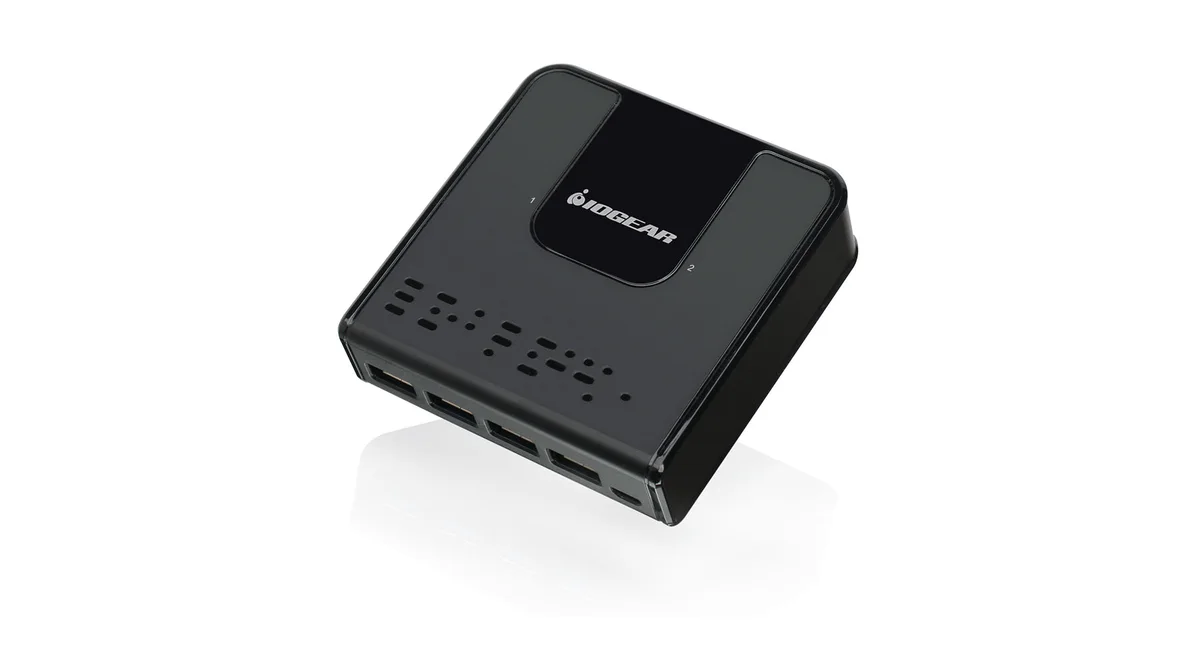
3. IOGEAR GCS1942NC
Buy IOGEAR GCS1942NC on Amazon ->
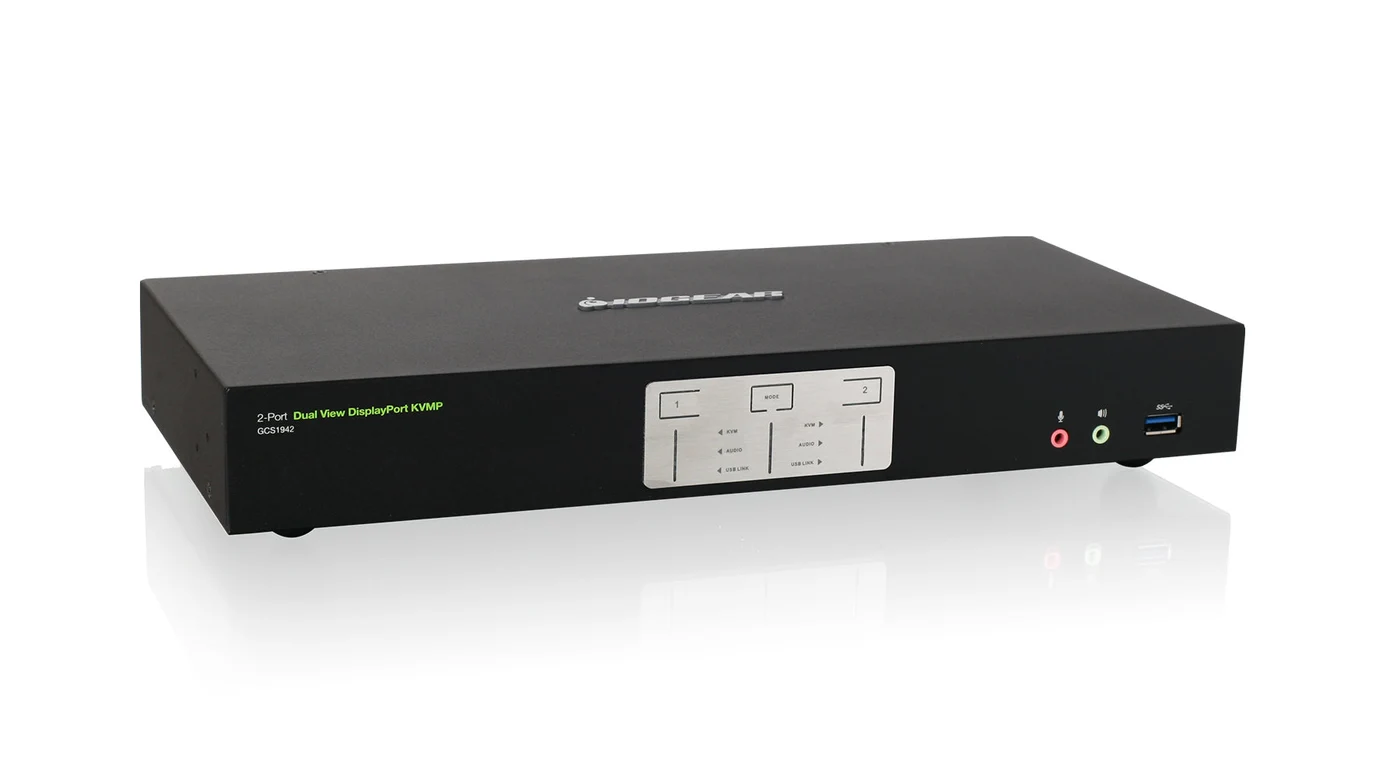
Image, specifications, and downloads: IOGEAR GCS1942NC.
Key specs: Video: two DisplayPort outputs, up to 4096 x 2160 at 60Hz; Standard: DisplayPort 1.2; Hub: two USB 3.0 ports at up to 5Gbps; Controls: front buttons, hotkeys, or compatible mouse.
Choose the GCS1942NC for two computers that already have two usable DisplayPort outputs each. Native connections avoid adding HDMI conversion to every video path. Independent USB and audio selection can keep a peripheral attached to one PC while you view the other.
The NC package is switch-only: IOGEAR’s package list contains no KVM cables, despite a conflicting family-level bullet. Budget for four PC-to-switch DisplayPort cables, two monitor cables, and two USB host cables. The verified new Amazon offer was from a third-party seller; confirm box contents and seller warranty eligibility before ordering.
Skip it if either computer cannot supply two independent DisplayPort signals or you want a complete cable kit. The product’s Documents and Drivers section provides the GCS1942 manual and optional Windows firmware utility; normal switching does not require that utility. Mouse switching needs a compatible three-key wheel mouse in emulation mode. Persistent window placement while switching is unverified for this exact model.
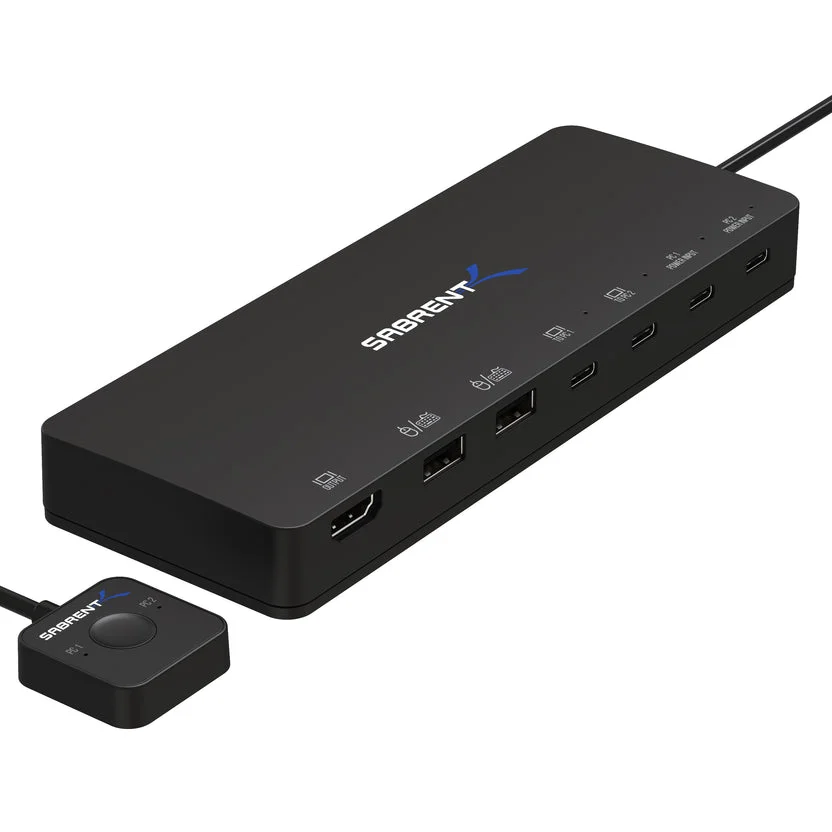
4. UGREEN 55455 Dual-HDMI KVM
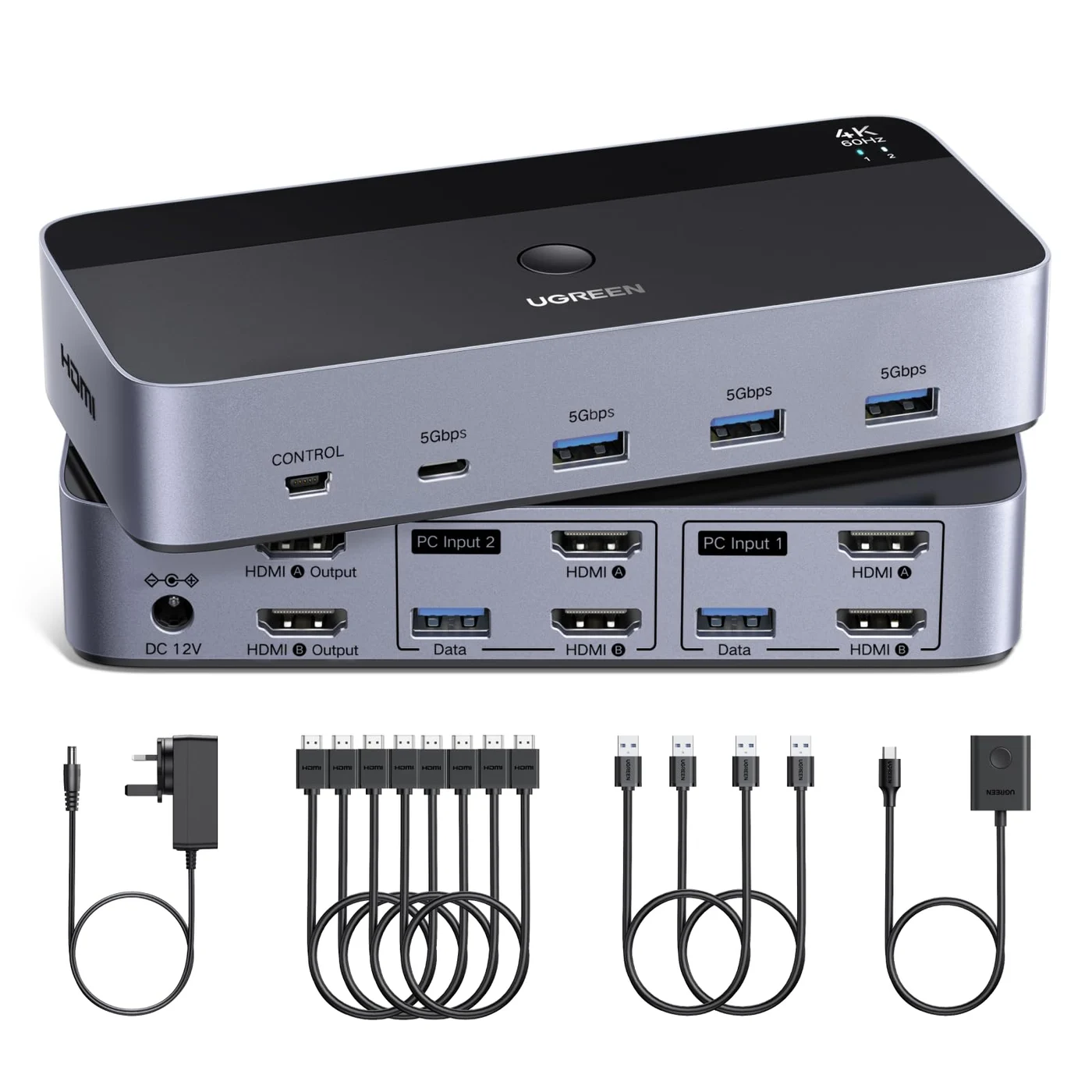
Image and specifications: UGREEN 55455. Package details: UGREEN regional 55455 listing.
Key specs: Video: two HDMI outputs, up to 4K at 60Hz; Hub: three USB-A and one USB-C port at up to 5Gbps; Controls: top button or wired controller; Hotkeys: not supported.
Choose the 55455 when both HDMI monitors should move together between your two computers. Four general USB ports make it more flexible for peripherals than the TESmart’s single USB 2.0 accessory port. The front USB-C port is not a video input or a laptop-charging connection.
The box’s four HDMI cables cover the computer side only; add two more for the monitors. It also includes two USB host cables, a wired controller, and a power adapter. UGREEN’s UK page describes driver-free operation; connected computers and adapters must still support two displays. The monitors cannot each show a different computer with this model.
Skip it if you need keyboard hotkeys, split-PC viewing, or a verified keep-windows-in-place feature. Persistent EDID emulation while the other computer is selected is not established by the linked product documentation. It is a button-operated option, not a universal fix for a troublesome dock or monitor sleep cycle.
5. TESmart HKS202-E23 / HKS0402A1U
Buy TESmart HKS202-E23 on Amazon ->
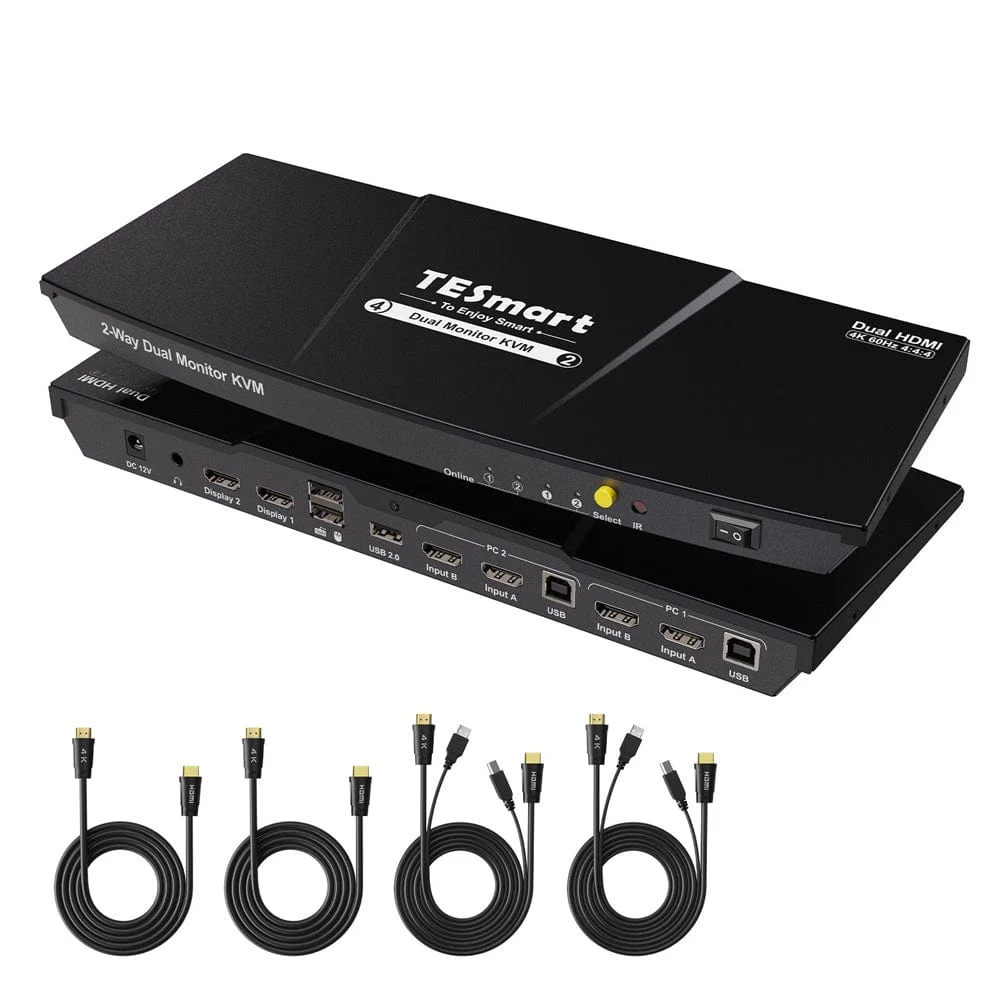
Image and specifications: TESmart HKS202-E23. Official manual and previous model-name mapping.
Key specs: Video: two HDMI outputs, up to 3840 x 2160 at 60Hz; Accessory hub: one USB 2.0 port plus dedicated keyboard/mouse; Controls: front button, IR remote, and hotkeys; EDID emulation: supported in display mode 1, not mode 2.
Consider the TESmart specifically when you need to see one computer on each monitor while moving the keyboard and mouse between them. The manual limits EDID emulation to the mode where both displays show the same PC, not split-PC mode.
This is a conditional alternative, not our default dual-monitor recommendation. The Amazon listing carried a Frequently returned item warning when checked September 9. That does not establish a failure rate or cause, but it is a reason to confirm your exact hardware and return terms. Skip it if you need fast shared storage, USB 3.0 peripherals, or a low-risk plug-and-play recommendation.
Use the manual’s hardware settings, not software for a similarly named model. Hotkeys need an external keyboard connected to the dedicated keyboard/mouse port; the manual recommends a separate Scroll Lock key and explains changing the trigger. The kit supplies computer-side HDMI/KVM cables and an IR remote; monitor cables and remote batteries are extra. This is the USB 2.0 E23, not the USB 3.0 P23.
Who Should Buy What
- One HDMI monitor and keyboard shortcuts: ATEN CS1822.
- One HDMI monitor and a simple desk button: ATEN CS22H, if its built-in leads reach both computers.
- Two native DisplayPort monitors: IOGEAR GCS1942NC, after adding cable costs and confirming the seller.
- Two HDMI monitors that always switch together: UGREEN 55455, provided both computers support both screens.
- One monitor showing each PC: TESmart HKS202-E23, only after accepting its USB 2.0, display-mode, and return-warning caveats.
If your main problem is physical monitor placement rather than switching, start with our dual-monitor arm comparison. A KVM will not create the mounting clearance or desk depth your screens need.
FAQ
Can a KVM make a one-monitor laptop support two extended displays?
No. These KVMs route video that the computer already produces. An adapter can convert a supported output, but cannot override the computer’s native display limit. Establish the two-screen setup directly first, including any dock, lid-position, or operating-system requirements, then insert the KVM.
Does the USB-C port mean the KVM charges my laptop?
No. USB-C describes a connector, not its capabilities. The UGREEN 55455 here uses its front USB-C port for shared peripheral data, not laptop video or charging. The CS22H has an optional USB Micro-B power input for the switch itself. Neither connection turns these KVMs into laptop-charging docks. Keep laptop power separate.
Will my windows stay in the same place when I switch computers?
Not necessarily. EDID tells the computer about the display, and KVMs handle switching differently. ATEN documents Video DynaSync and a default EDID mode; TESmart documents EDID emulation only in its same-PC display mode. These are useful features, not guarantees for every application or sleep/wake scenario. We have not tested retained-window behavior across these models.
Can I share a webcam, keyboard receiver, and external drive?
Potentially, within the switch’s supported USB mode, bandwidth, and power limits. Install any peripheral-specific driver on both computers. Use general hub ports for devices that do not work through keyboard/mouse emulation, recognizing that moving a keyboard there can disable KVM hotkeys. Eject or unmount writable storage before switching; changing hosts disconnects it.
What should I check if the keyboard works but the monitor is black?
Check that video and USB from each computer go to the same numbered input group. Select the correct monitor input, verify direct computer-to-monitor operation, and try a conservative mode such as 1080p60 before restoring higher settings. Add adapters and docks back one at a time so you can identify the failing connection rather than replacing the whole setup.
Bottom Line
Buy by monitor count, connector type, and controls, in that order. The ATEN CS1822 earns our feature-led single-monitor recommendation through documented controls and display handling, but its checked price is much higher than the simpler CS22H. IOGEAR and UGREEN cover native dual-DisplayPort and dual-HDMI desks respectively. Keep the TESmart for its specific split-view use case, not as a universal recommendation.
This article contains affiliate links. PicksLab may earn a small commission at no extra cost to you. Our recommendations are based on the review method described in this article.